How to interact with this book
This book was created with Jupyter Book, an open-source project for designing online interactive books that contain code and other computational material.
Interactive tools are available from the top of each page. See the screenshot:
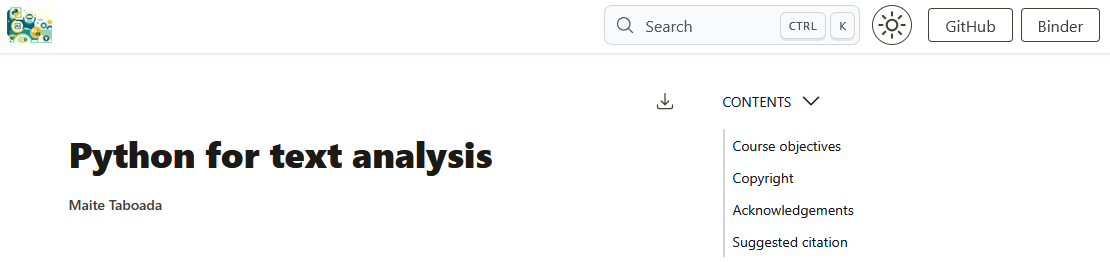
Change theme
You can change the theme to either “light” or “dark” on the sun/moon icon.
Open issue on GitHub
If you run into any issues or would like to make a suggestion, you can open an issue on GitHub by clicking on the GitHub button at the top of the page. There, you can click on Issues -> New Issue. Or directly: https://
Binder: Open Jupyter Notebook in the cloud
You can open and run some pages from this book in the cloud and run the code live. At the top of the page, click “Binder” to open a version of the same page in the cloud.
Binder is a service that allows you to run Jupyter notebooks without any prior configuration or installation. It may take a few minutes for the Jupyter notebook to load, so be patient.
Download Jupyter Notebook
You can download any Jupyter notebook page from this book as a Jupyter notebook file (.ipynb). Hover over the download icon and click “.ipynb”
To work with this .ipynb file, you will need to have Jupyter installed and running on your own computer. I recommend installing it through the Anaconda distribution.
The best way to get the entire book (rather than one .ipynb file at a time) is to go to the book repository: https://
Click to show output/code
Many of the pages in this book include hidden content. You can reveal the hidden content by clicking “Output” beneath the cell on the right.
Revealing content is meant to replicate the experience of running code live.
print("Here's an example of hidden output! Click 'Click to Show' to see the output!")Output
Here's an example of hidden output! Click 'Click to Show' to see the output!
42 * 42Output
1764